> ## Documentation Index
> Fetch the complete documentation index at: https://docs.ctechnology.io/llms.txt
> Use this file to discover all available pages before exploring further.
# Notifications and alerts
> Comprehensive guide to managing notification settings and viewing alerts for vehicle events, maintenance reminders, and system updates.
The notification system keeps you informed about important vehicle events, maintenance requirements, and system updates.
This feature provides customizable alert preferences and a centralized notification management interface.
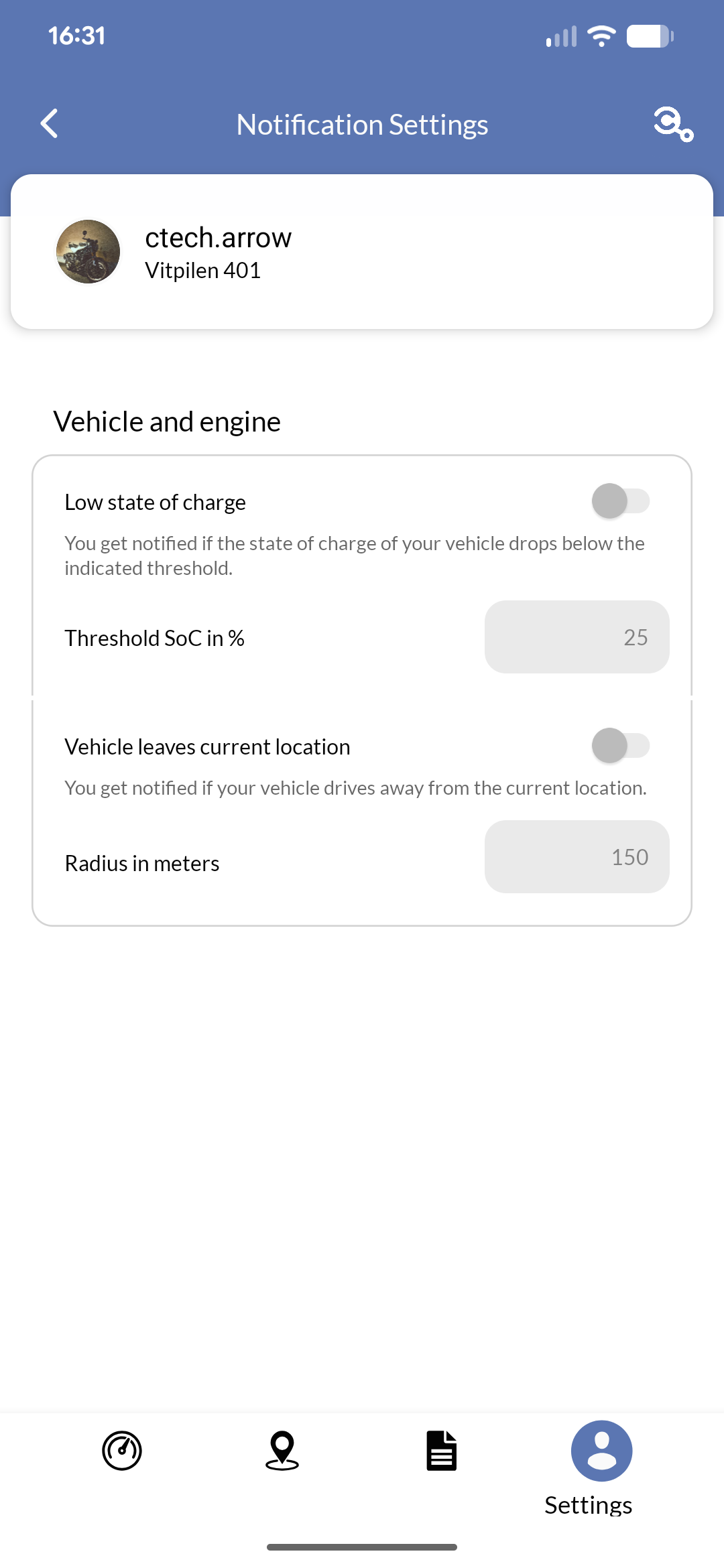
In the Private App, only a streamlined version of the notification settings is available. For full control over notification rules, please use the web interface at [app.ctechnology.io](https://app.ctechnology.io) or any white-labeled version thereof.
 ## Configuring custom notification rules
In the web application under [app.ctechnology.io](https://app.ctechnology.io), navigate to the settings of a vehicle through the respective menu entry.
## Configuring custom notification rules
In the web application under [app.ctechnology.io](https://app.ctechnology.io), navigate to the settings of a vehicle through the respective menu entry.
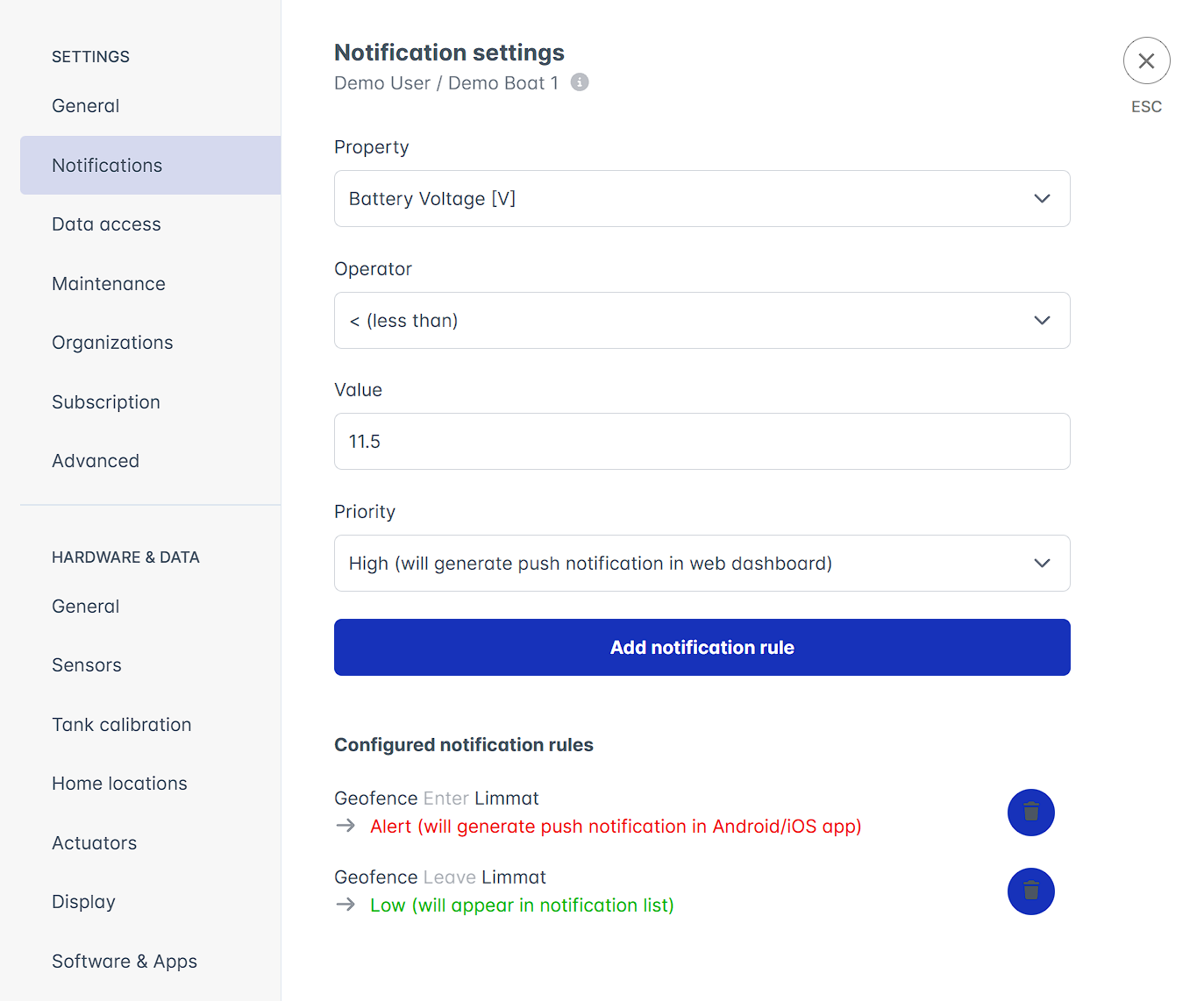 Select the property you want to configure notifications for (e.g. "Battery level"), an operator (e.g. "less than"), and a threshold value (e.g. "20%").
Choose a priority, as explained below (`LOW`, `MEDIUM`, `HIGH`, `ALERT`), and click "Add rule".
You can delete existing rules by clicking the trash can icon next to the rule.
## Receiving alerts
As explained in the previous section, alerts can be received as any of:
* **Push notifications** (`ALERT`): Delivered directly to your mobile device when the app is installed and notifications are enabled.
* **Desktop popup** (`HIGH`): Displayed on any desktop computer where you are logged into the web application.
* **Webapp popup** (`MEDIUM`): Shown as in-app notifications within the web application.
* **Logbook entry** (`LOW`): Recorded in the logbook section of the web application for later review.
Clicking on a push notification will take you directly to the relevant app.
Both in mobile apps as well as in the web application, a counter badge on the notification icon indicates the number of unread notifications awaiting your attention.
You can open the navigation drawer by clicking on the icon to view all notifications.
Clicking "Mark all as read" will clear the unread status from all current notifications and remove the notification badges throughout the app.
Select the property you want to configure notifications for (e.g. "Battery level"), an operator (e.g. "less than"), and a threshold value (e.g. "20%").
Choose a priority, as explained below (`LOW`, `MEDIUM`, `HIGH`, `ALERT`), and click "Add rule".
You can delete existing rules by clicking the trash can icon next to the rule.
## Receiving alerts
As explained in the previous section, alerts can be received as any of:
* **Push notifications** (`ALERT`): Delivered directly to your mobile device when the app is installed and notifications are enabled.
* **Desktop popup** (`HIGH`): Displayed on any desktop computer where you are logged into the web application.
* **Webapp popup** (`MEDIUM`): Shown as in-app notifications within the web application.
* **Logbook entry** (`LOW`): Recorded in the logbook section of the web application for later review.
Clicking on a push notification will take you directly to the relevant app.
Both in mobile apps as well as in the web application, a counter badge on the notification icon indicates the number of unread notifications awaiting your attention.
You can open the navigation drawer by clicking on the icon to view all notifications.
Clicking "Mark all as read" will clear the unread status from all current notifications and remove the notification badges throughout the app.