> ## Documentation Index
> Fetch the complete documentation index at: https://docs.ctechnology.io/llms.txt
> Use this file to discover all available pages before exploring further.
# Data upload
> Complete guide to uploading vehicle data and managing vehicle commands in the c.technology platform.
The c.technology platform processes real-time vehicle data ingested via different endpoints, and allows relaying commands back to a vehicle via similar channels.
This guide covers both uploading data from vehicles and sending commands back to vehicles.
Generally, you will have to differentiate between:
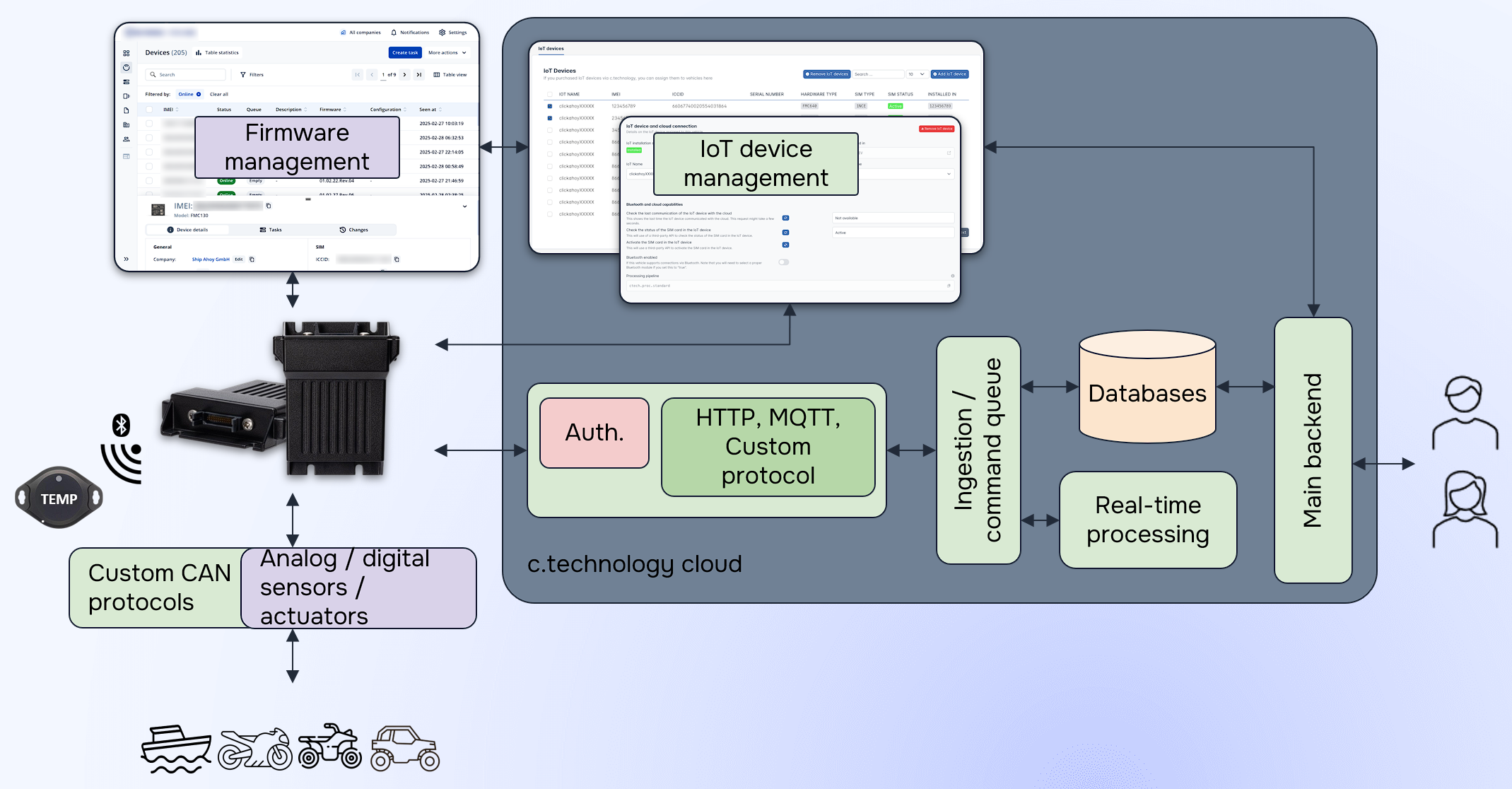
* **Data from an IoT device**: In this case, a custom TCP endpoint or an MQTT broker is commonly used. This guide does *not* cover this scenario. Please refer to the [hardware section](/hardware/introduction) for more information about devices supported out of the box.
* **Data ingested via HTTP endpoints**: This scenario covers mobile app relay connections, cloud-to-cloud solutions, and "heavier" IoT devices that can communicate via HTTPS. This guide focuses on this scenario.
Via the c.technology platform, you can not only upload data via the mentioned HTTP endpoints, but also manage your IoT devices.
This is usually in collaboration with the IoT device manufacturer's management portal:
 ## Retrieve upload token
The ingestion endpoints are separated from the main REST API for security and scalability reasons.
As such, you first need to obtain an upload token for your vehicle before you can upload data.
To do this, you either need upload access directly as a vehicle owner, or federated upload access via an organization.
As a vehicle owner (this is primarily important if you use an app as a data relay, as only the user is logged in there, and you should not expose your API key into an app), use the following request:
```bash theme={null}
curl https://ctechnology.io/api/v2.2/security/vehicle/{vehicle_id}/vehicle-data-upload-token \
-H "Authorization: Token YOUR_USER_TOKEN"
```
On the other hand, if you're in a secure backend (or embedded) environment and can use your organization's API key, use the following request:
```bash theme={null}
curl https://ctechnology.io/api/v2.2/security/vehicle/{vehicle_id}/vehicle-data-upload-token \
-H "Authorization: Api-key YOUR_VEHICLE_UPLOAD_API_KEY"
```
The `YOUR_VEHICLE_UPLOAD_API_KEY` must be an API key that has the `VEHICLE_DATA_UPLOAD` permission for the indicated vehicle. You can create such an API key as described [here](#retrieve-vehicle-upload-api-key).
Finally, if you want a global upload token for all vehicles in your organization, you can use the following request.
This should *only* be used for cloud-to-cloud integrations where you can securely store the token, as it allows uploading data for *all* vehicles in your organization.
```bash theme={null}
curl https://ctechnology.io/api/v2.2/security/organization/{organization_id}/vehicle-data-upload-token \
-H "Authorization: Api-key YOUR_ORG_API_KEY"
```
Any of these requests will return a JWT (including either the vehicle or organization id, the expiration date, and some internally used information) that you can use to authenticate your data upload requests:
```json theme={null}
{
"header": { ... },
"data": {
"token": "your-upload-token",
}
}
```
### Retrieve vehicle upload API key
To create an API key with the `VEHICLE_DATA_UPLOAD` permission for a specific vehicle, use the following request:
```bash theme={null}
curl -X POST https://api.ctechnology.io/api/v2.2/organization/{organization_id}/api-key/ \
-H "Authorization: Api-key YOUR_ORG_API_KEY" \
-H "Content-Type: application/json" \
-d '{
"organization_id": "com.your.org",
"role": "VEHICLE_UPLOAD_DATA",
"vehicle_id": "veh_12345",
"name": f"upload-api-key-{vehicle_id}"
}'
```
## Authenticate with ingress and obtain session token
The ingress service itself uses short-lived session tokens to authenticate vehicles.
These session tokens are tied to a specific vehicle and include metadata such as the vehicle UUID.
You will have to refresh the session token periodically or when it expires.
Request a session token by making the following request:
```bash theme={null}
curl -X POST https://ingress.ctechnology.io/auth/ \
-H "Authorization: Token YOUR_TOKEN" \
-H "Content-Type: application/json" \
-d '{
"token": "your-upload-token"
}'
```
The response will contain a session token that you can use for subsequent data uploads:
```json theme={null}
{
"session_token": "your-session-token",
"expiration_date": "2025-10-10T10:39:06.514Z"
}
```
## Upload vehicle data
To upload vehicle data, use the session token obtained in the previous step to authenticate your requests.
Make the following request to upload data:
```bash theme={null}
curl -X POST https://ingress.ctechnology.io/update/base/ \
-H "Content-Type: application/json" \
-d '{
"update": {
"timestamp": "2025-10-10T10:41:19.556Z",
"longitude": 0,
"latitude": 0,
...
},
"session_token": {
"token": "your-session-token"
}
}'
```
Other ways to pass your session token are possible.
See the [ingress documentation](https://ingress.ctechnology.io/docs) for more information about the different endpoints and data formats supported.
If you have a custom data upload endpoint, you will receive it directly from c.technology.
## Vehicle Command System
The platform enables bidirectional communication with vehicles through a sophisticated command queuing system that ensures reliable delivery and execution of commands.
Commands are sent through the vehicle command API with support for immediate execution or best-effort delivery.
Make the following request to enqueue a command:
```bash theme={null}
curl -X POST https://api.ctechnology.io/api/v2.2/vehicle/{vehicle_id}/command/ \
-H "Authorization: Token YOUR_TOKEN" \
-H "Content-Type: application/json" \
-d '{
"command": "LOCK", // see REST API docs for supported commands
"priority": "HIGH", // or "LOW"
"timestamp_planned_execution": null, // or ISO 8601 timestamp for scheduled execution
}'
```
### Command Priority Levels
The system supports two priority levels with different delivery mechanisms:
#### `HIGH` Priority Commands
* **Delivery Method**: SMS or other active push via GPRS (ensures devices can be reached even without a data connection)
* **Execution**: Immediate upon receipt
* **Use Cases**: Emergency stops, security alerts, critical safety commands
* **Cost**: Higher cost due to SMS delivery
* **Reliability**: Very high, works even with poor data connectivity
#### `LOW` Priority Commands
* **Delivery Method**: Data connection (command is sent at next device check-in)
* **Execution**: Scheduled or next available opportunity
* **Use Cases**: Configuration updates, scheduled maintenance, routine adjustments
* **Cost**: Lower cost, uses existing data connection
* **Reliability**: High, but depends on device connectivity
### Command Status and Tracking
This is currently under development and may not be supported in all environments.
You can track command delivery and execution status:
```bash theme={null}
curl -X GET https://api.ctechnology.io/api/v2.2/vehicle/{vehicle_id}/command/ \
-H "Authorization: Token YOUR_TOKEN"
```
## Data Upload Best Practices
Please consider the following best practices when uploading data.
### Optimal Upload Frequency
Balance data freshness with bandwidth and battery consumption:
* **Moving mode**: Every 5-10 seconds for active vehicles
* **Stationary mode**: Every 10-30 minutes for parked vehicles
* **Power-saving mode**: Every 30 minutes to 3 hours for low battery scenarios
* **Event-Triggered**: Immediate upload for critical events
### Batch Upload Strategy
Batch uploads are currently under development and may not be supported in all environments.
### Security Considerations
Ensuring tokens are secure is crucial to keep clean and reliable data, and prevent tampering:
* **Token Management**: You *must* securely store API keys and periodically refresh session tokens.
* **Data Encryption**: All endpoints require the use of HTTPS for all data transmission.
* **Rate Limiting**: APIs are rate-limited. You will be informed via HTTP 429 responses if you exceed limits. Implement exponential backoff and retry logic.
## Troubleshooting
This section may help you resolve common issues during data upload and command management.
Verify that the upload token and session token are correct and have not expired.
Ensure the vehicle is registered and associated with the correct organization or user.
Check the data format against the expected schema.
Ensure all required fields are present, especially the timestamp.
Validate numeric ranges for sensor values.
Ensure the vehicle is online and has a stable connection.
Check command priority and adjust if necessary.
Implement exponential backoff retry logic.
Reduce upload frequency if hitting rate limits.
Consider batch uploading multiple data points.
## Retrieve upload token
The ingestion endpoints are separated from the main REST API for security and scalability reasons.
As such, you first need to obtain an upload token for your vehicle before you can upload data.
To do this, you either need upload access directly as a vehicle owner, or federated upload access via an organization.
As a vehicle owner (this is primarily important if you use an app as a data relay, as only the user is logged in there, and you should not expose your API key into an app), use the following request:
```bash theme={null}
curl https://ctechnology.io/api/v2.2/security/vehicle/{vehicle_id}/vehicle-data-upload-token \
-H "Authorization: Token YOUR_USER_TOKEN"
```
On the other hand, if you're in a secure backend (or embedded) environment and can use your organization's API key, use the following request:
```bash theme={null}
curl https://ctechnology.io/api/v2.2/security/vehicle/{vehicle_id}/vehicle-data-upload-token \
-H "Authorization: Api-key YOUR_VEHICLE_UPLOAD_API_KEY"
```
The `YOUR_VEHICLE_UPLOAD_API_KEY` must be an API key that has the `VEHICLE_DATA_UPLOAD` permission for the indicated vehicle. You can create such an API key as described [here](#retrieve-vehicle-upload-api-key).
Finally, if you want a global upload token for all vehicles in your organization, you can use the following request.
This should *only* be used for cloud-to-cloud integrations where you can securely store the token, as it allows uploading data for *all* vehicles in your organization.
```bash theme={null}
curl https://ctechnology.io/api/v2.2/security/organization/{organization_id}/vehicle-data-upload-token \
-H "Authorization: Api-key YOUR_ORG_API_KEY"
```
Any of these requests will return a JWT (including either the vehicle or organization id, the expiration date, and some internally used information) that you can use to authenticate your data upload requests:
```json theme={null}
{
"header": { ... },
"data": {
"token": "your-upload-token",
}
}
```
### Retrieve vehicle upload API key
To create an API key with the `VEHICLE_DATA_UPLOAD` permission for a specific vehicle, use the following request:
```bash theme={null}
curl -X POST https://api.ctechnology.io/api/v2.2/organization/{organization_id}/api-key/ \
-H "Authorization: Api-key YOUR_ORG_API_KEY" \
-H "Content-Type: application/json" \
-d '{
"organization_id": "com.your.org",
"role": "VEHICLE_UPLOAD_DATA",
"vehicle_id": "veh_12345",
"name": f"upload-api-key-{vehicle_id}"
}'
```
## Authenticate with ingress and obtain session token
The ingress service itself uses short-lived session tokens to authenticate vehicles.
These session tokens are tied to a specific vehicle and include metadata such as the vehicle UUID.
You will have to refresh the session token periodically or when it expires.
Request a session token by making the following request:
```bash theme={null}
curl -X POST https://ingress.ctechnology.io/auth/ \
-H "Authorization: Token YOUR_TOKEN" \
-H "Content-Type: application/json" \
-d '{
"token": "your-upload-token"
}'
```
The response will contain a session token that you can use for subsequent data uploads:
```json theme={null}
{
"session_token": "your-session-token",
"expiration_date": "2025-10-10T10:39:06.514Z"
}
```
## Upload vehicle data
To upload vehicle data, use the session token obtained in the previous step to authenticate your requests.
Make the following request to upload data:
```bash theme={null}
curl -X POST https://ingress.ctechnology.io/update/base/ \
-H "Content-Type: application/json" \
-d '{
"update": {
"timestamp": "2025-10-10T10:41:19.556Z",
"longitude": 0,
"latitude": 0,
...
},
"session_token": {
"token": "your-session-token"
}
}'
```
Other ways to pass your session token are possible.
See the [ingress documentation](https://ingress.ctechnology.io/docs) for more information about the different endpoints and data formats supported.
If you have a custom data upload endpoint, you will receive it directly from c.technology.
## Vehicle Command System
The platform enables bidirectional communication with vehicles through a sophisticated command queuing system that ensures reliable delivery and execution of commands.
Commands are sent through the vehicle command API with support for immediate execution or best-effort delivery.
Make the following request to enqueue a command:
```bash theme={null}
curl -X POST https://api.ctechnology.io/api/v2.2/vehicle/{vehicle_id}/command/ \
-H "Authorization: Token YOUR_TOKEN" \
-H "Content-Type: application/json" \
-d '{
"command": "LOCK", // see REST API docs for supported commands
"priority": "HIGH", // or "LOW"
"timestamp_planned_execution": null, // or ISO 8601 timestamp for scheduled execution
}'
```
### Command Priority Levels
The system supports two priority levels with different delivery mechanisms:
#### `HIGH` Priority Commands
* **Delivery Method**: SMS or other active push via GPRS (ensures devices can be reached even without a data connection)
* **Execution**: Immediate upon receipt
* **Use Cases**: Emergency stops, security alerts, critical safety commands
* **Cost**: Higher cost due to SMS delivery
* **Reliability**: Very high, works even with poor data connectivity
#### `LOW` Priority Commands
* **Delivery Method**: Data connection (command is sent at next device check-in)
* **Execution**: Scheduled or next available opportunity
* **Use Cases**: Configuration updates, scheduled maintenance, routine adjustments
* **Cost**: Lower cost, uses existing data connection
* **Reliability**: High, but depends on device connectivity
### Command Status and Tracking
This is currently under development and may not be supported in all environments.
You can track command delivery and execution status:
```bash theme={null}
curl -X GET https://api.ctechnology.io/api/v2.2/vehicle/{vehicle_id}/command/ \
-H "Authorization: Token YOUR_TOKEN"
```
## Data Upload Best Practices
Please consider the following best practices when uploading data.
### Optimal Upload Frequency
Balance data freshness with bandwidth and battery consumption:
* **Moving mode**: Every 5-10 seconds for active vehicles
* **Stationary mode**: Every 10-30 minutes for parked vehicles
* **Power-saving mode**: Every 30 minutes to 3 hours for low battery scenarios
* **Event-Triggered**: Immediate upload for critical events
### Batch Upload Strategy
Batch uploads are currently under development and may not be supported in all environments.
### Security Considerations
Ensuring tokens are secure is crucial to keep clean and reliable data, and prevent tampering:
* **Token Management**: You *must* securely store API keys and periodically refresh session tokens.
* **Data Encryption**: All endpoints require the use of HTTPS for all data transmission.
* **Rate Limiting**: APIs are rate-limited. You will be informed via HTTP 429 responses if you exceed limits. Implement exponential backoff and retry logic.
## Troubleshooting
This section may help you resolve common issues during data upload and command management.
Verify that the upload token and session token are correct and have not expired.
Ensure the vehicle is registered and associated with the correct organization or user.
Check the data format against the expected schema.
Ensure all required fields are present, especially the timestamp.
Validate numeric ranges for sensor values.
Ensure the vehicle is online and has a stable connection.
Check command priority and adjust if necessary.
Implement exponential backoff retry logic.
Reduce upload frequency if hitting rate limits.
Consider batch uploading multiple data points.